Task:
Enhance the security of a router by implementing MAC address filtering to control access to the network. Follow these steps:
1. Configure MAC Address Filtering
Log in to your TP-Link router's web interface. You can usually do this by entering
the router's IP address (e.g., 192.168.0.1) into your web
browser.
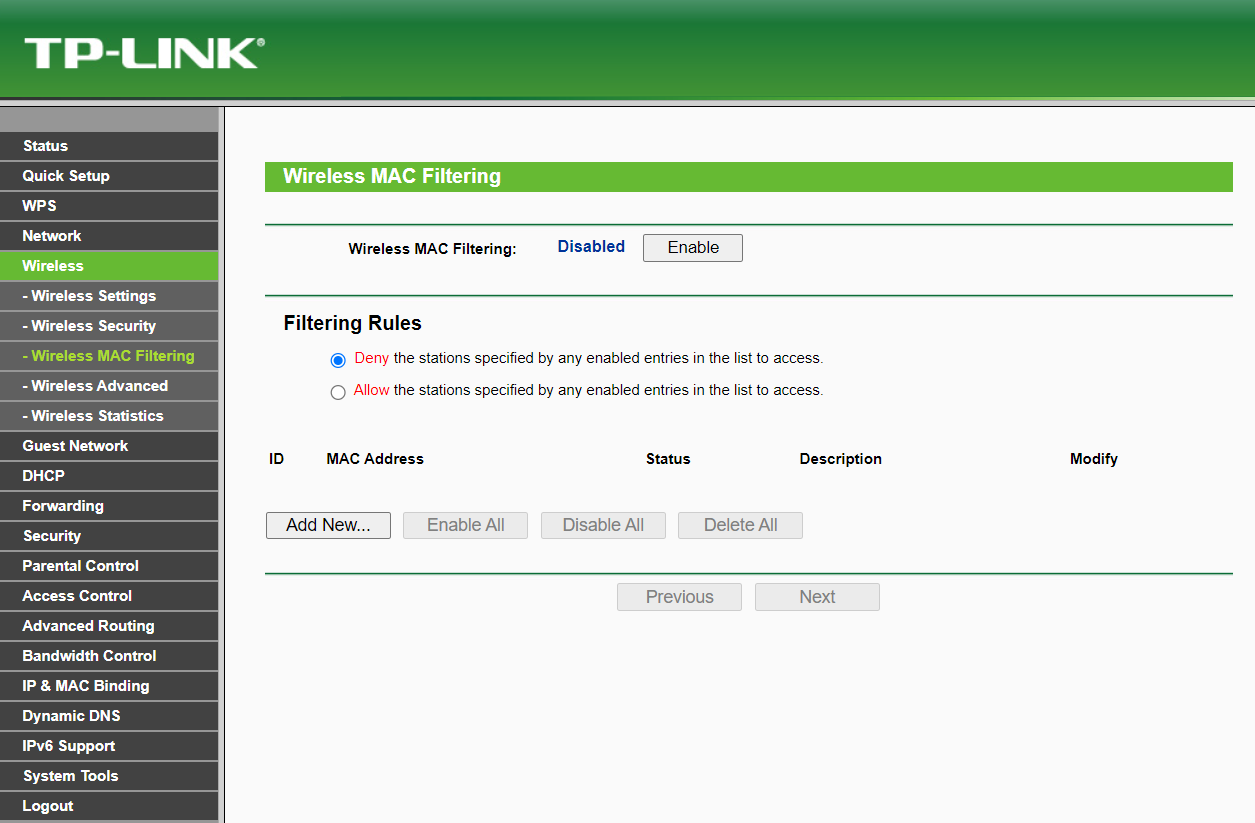
Navigate to the MAC Address Filtering section. This can typically be found the Wireless > Wireless MAC Filtering
Enable MAC Address Filtering and choose the option to allow only specified devices to connect.
2. Create an Access Control List (ACL)
In the MAC Address Filtering section, add the MAC addresses of authorized devices. Each device's MAC address should be entered in the specified format.
Save the settings to update the router's configuration.
3. Test the Configuration
Attempt to connect unauthorized devices to the network. These devices should be unable to access the network if the MAC address filtering is correctly configured.
Verify that authorized devices can connect without issues.